setup
Install CMO-X
Seven steps, about five minutes.
Requirements
1 · Client
2 · Account
3 · Licence
4 · Agent
5 · Launch
6 · Script
7 · Hub
Troubleshooting
00
Requirements
- Linux x86-64.
- Flatpak.
curlandzstd.- An account with an active licence.
01
Install the client
flatpak remote-add --if-not-exists flathub \\
  https://flathub.org/repo/flathub.flatpakrepo
flatpak install -y flathub space.bigrat.mocktail

# launch once
flatpak run space.bigrat.mocktail
Sign in to Roblox, wait for the home screen, then close it.
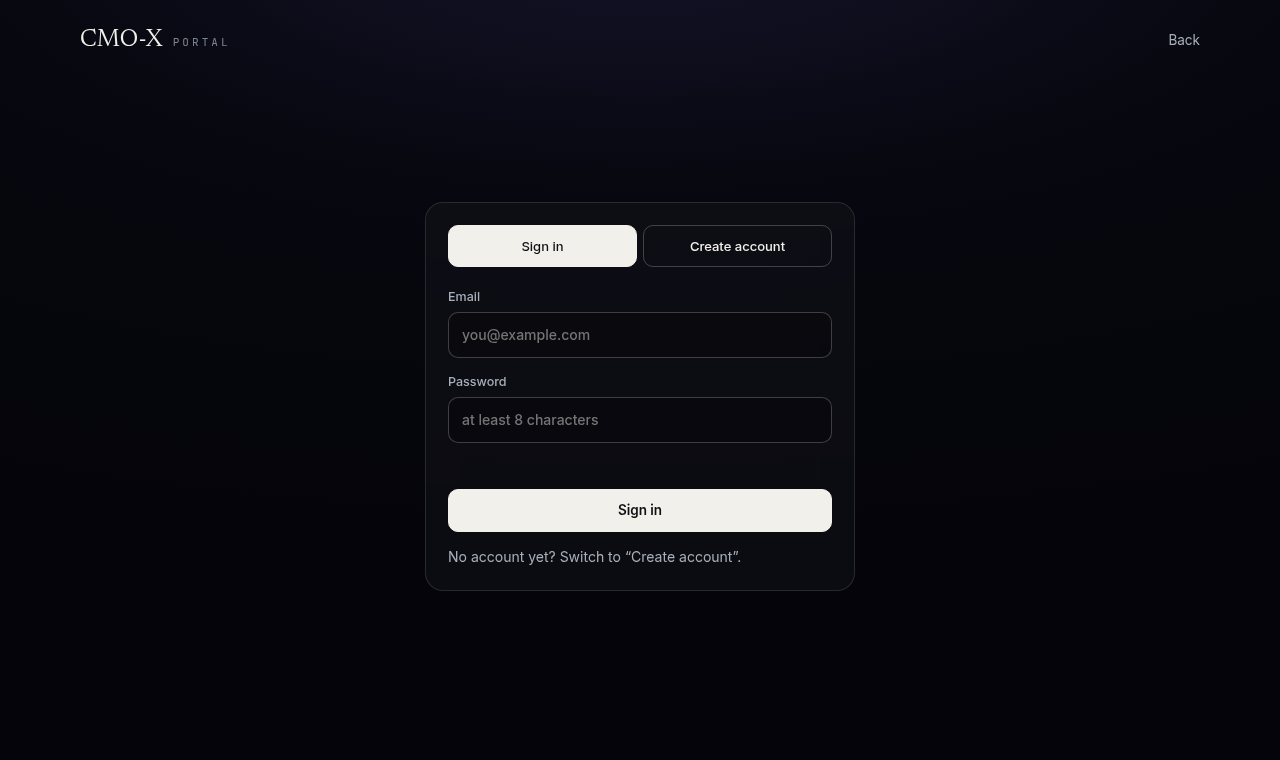
02
Create an account
Open x.c-mo.fr → Create account. Use a real email.
03
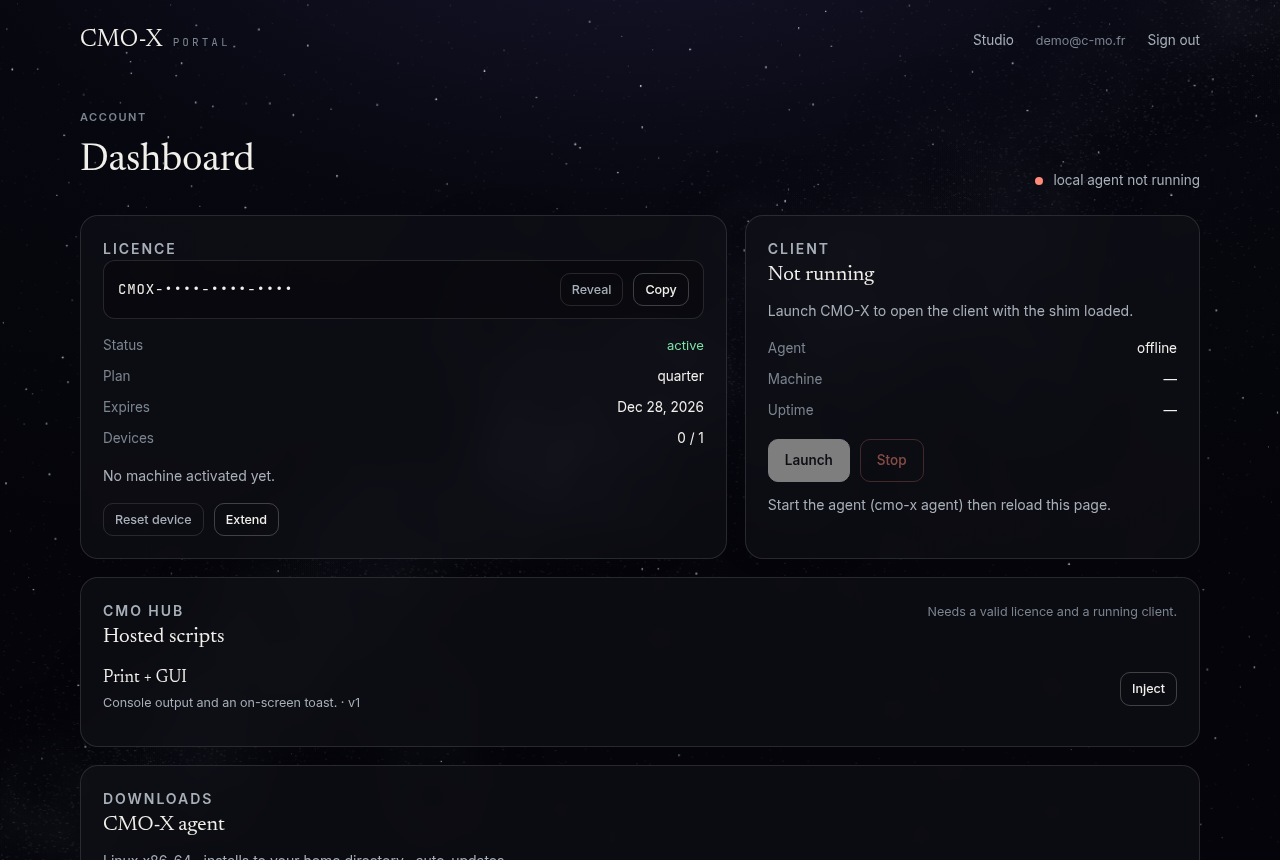
Get a licence
Your dashboard shows the plans. Pick one; the key appears immediately after payment.
04
Install the agent
curl -fsSL https://x.c-mo.fr/install.sh | bash
cmo-x status
agent   : running
client  : stopped
05
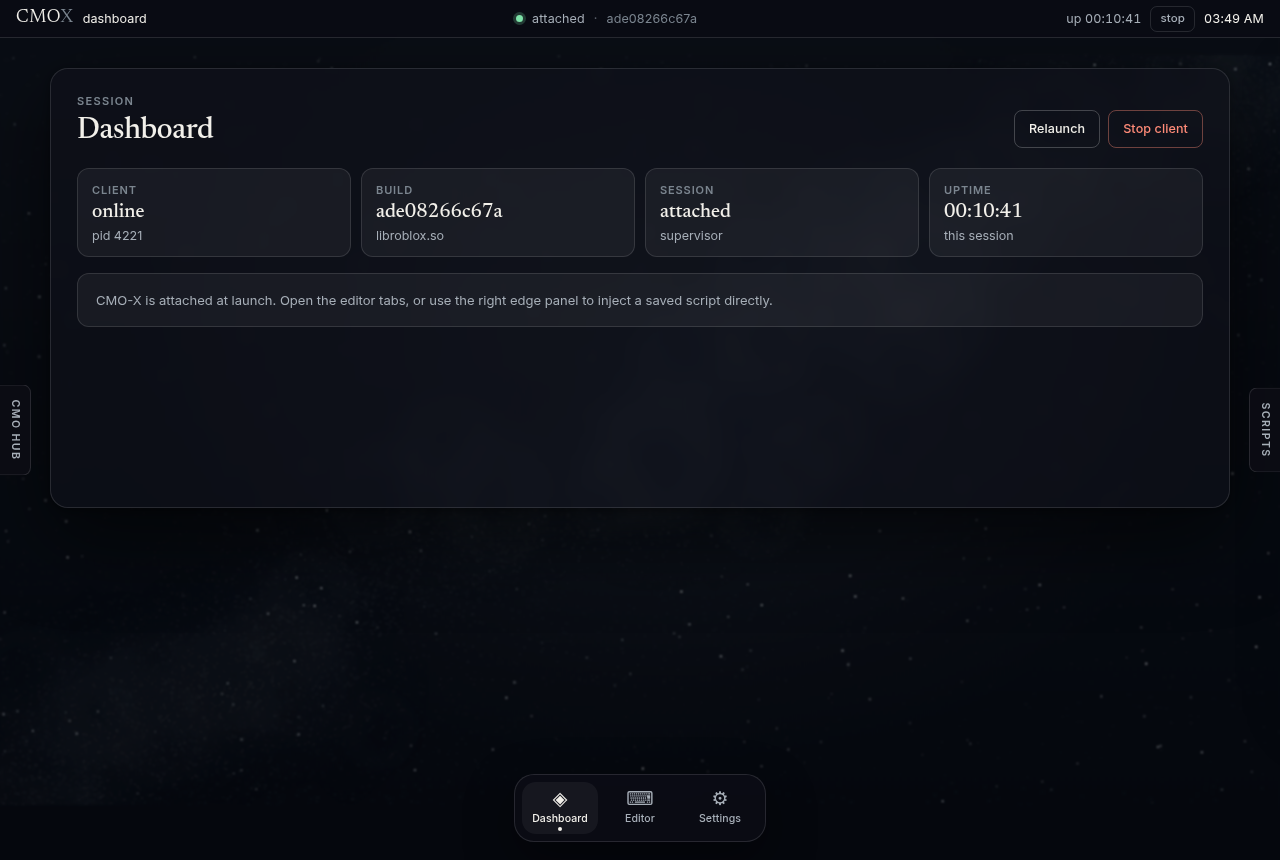
Launch
Reload the dashboard, press Open Studio, then Launch. Sign in to Roblox and join a game.
06
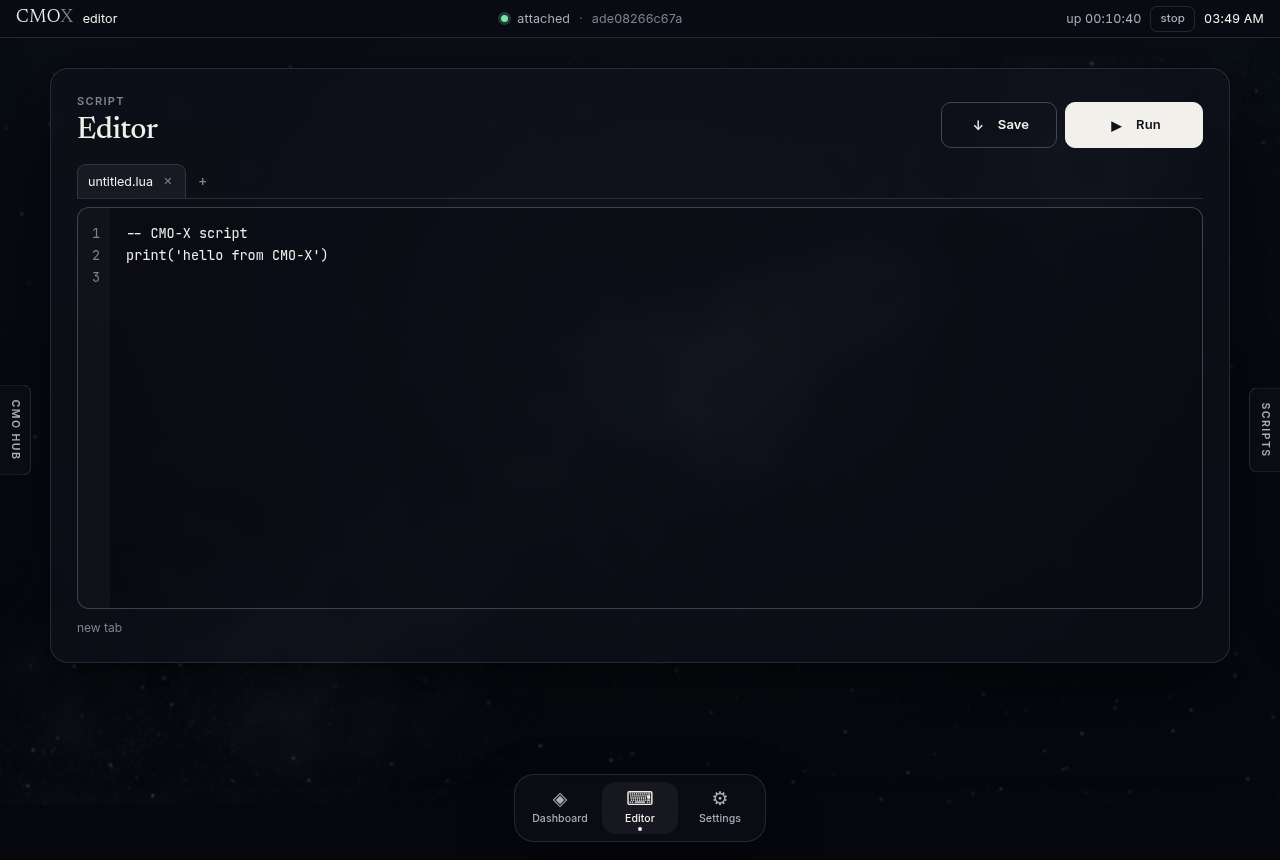
Run a script
Editor tab → write → Run or Ctrl + Enter. Join a game first.
07
Hub scripts
Hover CMO HUB on the left edge → Inject.
08
Troubleshooting
| Problem | Fix |
|---|---|
| “agent offline” | cmo-x start, then reload the page. Logs: journalctl --user -u cmo-x-agent -n 40 |
| “client already running” | Stop client, then Launch. |
| Script not completed | Join a game, run again. |
| Compile error | The message shows the line; fix it and run again. |
| “Open Studio” returns to dashboard | No active licence. |
| Licence refused | Check the expiry in the dashboard; reset the device if you changed hardware. |
| Stopped after a Roblox update | Wait for the matching release, then relaunch. |
Uninstall: cmo-x stop, systemctl --user disable cmo-x-agent, delete ~/.local/share/cmo-x.